
My starting advice: every 20 minutes, look 20 feet away for 20 seconds. Pair that break with larger text and complete blinks to help ease tired, dry eyes.
But breaks are only part of the picture. Here are the 10 steps I recommend for more comfortable screen use:
- Keep your prescription current. Ask whether your glasses suit your screen distance.
- Use the 20-20-20 rule. Give your eyes regular pauses from close-up work.
- Adjust brightness and contrast. Make the display comfortable for the room’s lighting.
- Cut glare. Move your screen or lights to reduce reflections.
- Check screen placement. Keep your monitor 20–28 inches away, with the top at or slightly below eye level.
- Enlarge text. Use zoom or display scaling instead of leaning closer.
- Blink completely. Ask an eye-care professional about drops if dryness continues.
- Support your posture. Keep your back supported, feet resting flat, and shoulders relaxed.
- Avoid direct airflow. Keep fans and vents off your eyes; if using a humidifier, keep humidity at 50% or below.
- Take longer screen-free breaks. Aim for about 15 minutes after every 2 hours of device use.
You don’t need to change everything at once. I suggest starting with breaks, blinking, and readable text, then adjusting your setup.
<u>Symptoms that persist need an eye exam.</u> Sudden vision loss, severe eye pain, or new double vision calls for urgent care – not another screen adjustment.
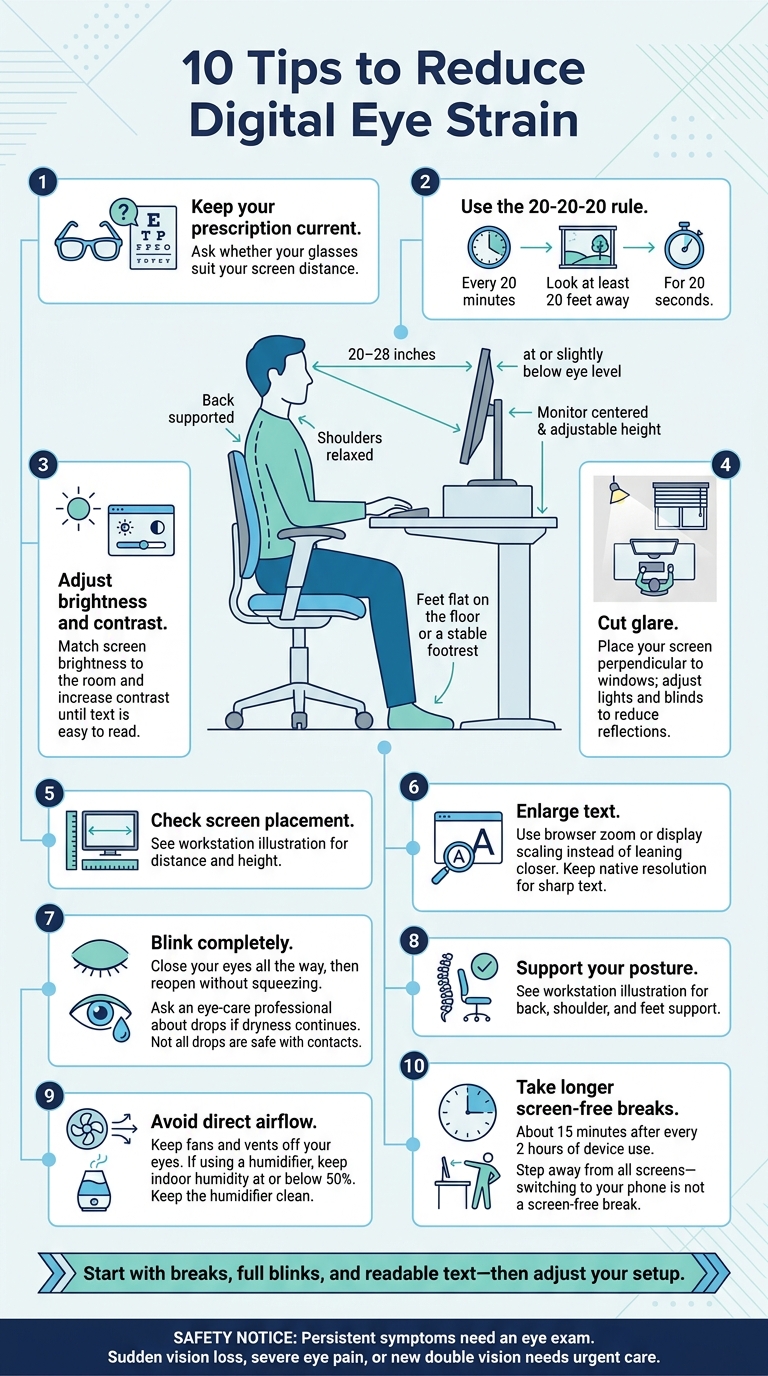
10 Tips to Reduce Digital Eye Strain
1. Keep Eye Exams and Your Prescription Up to Date
If screen strain starts with blurry vision or squinting, check your prescription first.
Recommended action
Keep your glasses or contact lens prescription current for the distance you usually sit from your screen. Contact lens wearers generally need annual eye exams. Otherwise, exam timing depends on your age, symptoms, and health history.
Reason it helps
An outdated prescription – or one that doesn’t match your screen distance – can make text harder to focus on. That can lead to squinting, headaches, and leaning toward the screen.
Practical implementation
Bring your glasses, contact lens details, and medication list to your exam. Note how far you sit from your screen, when symptoms start, and whether they ease when you step away. Ask whether computer-distance lenses could help.
Cheyenne Eye Clinic and Surgery Center can check your vision, eye health, and dry eye symptoms. Seek urgent eye care for sudden vision loss, severe eye pain, or new double vision.
sbb-itb-246add9
2. Take 20-20-20 Breaks
Once your prescription is up to date, a timed break is the next easiest step.
Recommended action
Every 20 minutes, look at something at least 20 feet away for 20 seconds. Use this rule during any screen task to give your eyes a break from close-up work.
Reason it helps
Looking into the distance relaxes your eyes’ focusing muscles. This interrupts the fatigue that builds when you focus up close during screen use.
Practical implementation
Set a reminder for every 20 minutes, and choose a distant target before you start. When the reminder rings, look at that target for 20 seconds and blink fully a few times.
Next, check your screen brightness and lighting.
3. Adjust Screen Brightness and Contrast
Recommended action
After taking breaks, adjust your screen to suit the room’s lighting. Match screen brightness to the room, and increase contrast until text is easy to read.
Reason it helps
A screen that’s brighter or dimmer than the room makes your eyes work harder. Low contrast also makes text harder to read.
Practical implementation
Open a white page and adjust brightness until the page and the surrounding area look similar in brightness. Then check that you can read dark text on a light background without squinting or leaning forward.
Check these settings again when the lighting changes – for example, after sunset or when you move between rooms. In a dark room, turn on a room light rather than relying on the screen alone. Use automatic brightness, then fine-tune it manually if needed. Next, address glare.
4. Reduce Screen Glare
Recommended action
Glare can make text hard to read even when your brightness is set correctly. Place your screen perpendicular to windows to keep reflections off the display.
Reason it helps
Reflections and bright spots wash out text. That can leave you squinting or shifting your posture just to read.
Practical implementation
Display a dark screen or image, then check for reflections from windows, lamps, or light fixtures. Adjust the blinds, move your monitor, or change its tilt until the reflections fade.
Point your desk lamp at your paperwork – not your display. Use soft, indirect room lighting, including at night, so your screen isn’t the only bright light source.
If reflections persist, try a matte anti-glare filter sized for your screen. Check that it doesn’t blur the text or make the display too dim.
5. Set Your Screen Distance and Height
Recommended action
After adjusting brightness and reducing glare, position your screen to ease eye effort and neck strain. Keep your monitor 20 to 28 inches from your eyes, with the top at or slightly below eye level. Center it directly in front of you.
Reason it helps
A screen that’s too close makes your eyes work harder. If it’s too high, you may tilt your head back. Proper placement helps keep your head in a neutral position and reduces leaning or squinting.
Practical implementation
Sit with your back supported and your head upright, then check the distance to your screen. Adjust the stand or add a stable riser to get the height right. Enlarge hard-to-read text instead of leaning closer.
For a laptop, lift the screen and use a separate keyboard and mouse. Hold phones and tablets farther away, and increase text size so you can read comfortably. Support the device to avoid neck strain.
6. Make Text Easier to Read
Recommended action
Once your screen is positioned and lit correctly, adjust the text size. Increase the font size or browser zoom until you can read without squinting or leaning forward. For small menus, buttons, or icons, use your device’s display scaling or text-size settings.
Reason it helps
Small, poorly defined letters and low contrast make text harder to read. Clear letters and comfortable spacing help reduce squinting and eye fatigue.
Practical implementation
Press Ctrl-plus on Windows or Command-plus on macOS to enlarge webpages. Browser zoom adjusts web content; your device’s display scaling or text-size settings adjust content across the system. Check that enlarged text fits the screen without cutting off buttons or requiring sideways scrolling.
Keep your screen at its native resolution to keep text sharp. Enlarge content through scaling rather than lowering the resolution, which can make letters look less sharp.
7. Blink Fully and Address Dry Eyes
Recommended action
Blink fully, not just often. Close your eyes all the way, then reopen them without squeezing. Complete blinks spread tears across your eyes.
Reason it helps
Incomplete blinks leave the surface of your eyes less protected. That can lead to dryness, stinging, and a gritty feeling.
Practical implementation
Use everyday moments as reminders to take a few slow, complete blinks: after sending an email, while a webpage loads, or when starting your 20-minute break.
If dryness continues, especially with contact lenses, ask your eye-care professional about artificial tears. Not all drops are safe to use with contacts. Preservative-free drops may suit frequent use, and redness-relief drops aren’t a good choice for routine dryness.
Consider switching from contacts to glasses during long screen sessions. If you develop pain, marked redness, light sensitivity, discharge, or sudden blurry vision, remove your contacts and seek prompt evaluation.
If better blinking doesn’t ease the dryness, the next step is to reduce the conditions that dry out your eyes.
8. Improve Your Sitting Posture
Recommended action
Support your lower back and feet. Sit upright or lean back slightly, with your head, neck, and torso aligned. Keep your ears over your shoulders and let your shoulders relax. Rest both feet flat on the floor or on a stable footrest, and place your main screen directly in front of you.
Reason it helps
Hunching puts more strain on your neck, shoulders, and upper back during long screen sessions. A supported posture reduces muscle strain and helps you avoid leaning toward the display. Aim for comfort, not stiffness. Good posture also helps keep your eyes and neck relaxed when you spend more time at the screen.
Practical implementation
Pull your chair close enough to reach the keyboard and mouse without leaning forward. Adjust the lower-back support, or tuck a small cushion behind your lower back if needed. If your feet dangle, use a sturdy footrest.
For laptop work, use a stable stand to bring the display up, along with a separate keyboard and mouse to keep the setup comfortable. Check that you can read the screen without leaning, twisting, or tilting your head.
With your body supported, the next step is to reduce strain caused by your surroundings.
9. Reduce Dry Air and Direct Airflow
Recommended action
After adjusting your posture, tackle dry air. Keep airflow off your eyes. Point desk fans, ceiling fans, heating vents, and air-conditioning vents toward a wall or ceiling, or move out of the draft. If the room feels dry, use a clean humidifier.
Reason it helps
Dry air and direct airflow make tears evaporate faster. Screen use can add to the dryness because you may blink less often or not fully close your eyes when concentrating.
Practical implementation
Check the humidity near your workstation with a hygrometer. If you use a humidifier, keep indoor humidity at or below 50% and direct the mist away from your face. Lower the setting if you spot condensation on windows or damp surfaces.
Empty standing water, refill with clean water, and clean or replace parts as directed.
10. Break Up Long Screen Sessions
Recommended action
Once you’ve adjusted your setup and blink habits, the last step is to limit screen time between breaks. Split work, study, and entertainment into shorter blocks. Spend about 15 minutes away from screens after every 2 hours of device use.
Reason it helps
Long screen sessions tire your eyes and body. A longer break gives you time to reset your posture and ease mental fatigue. Switching to a smaller screen still counts as screen time. Even short breaks work best when you step away from screens altogether.
Practical implementation
Set a reminder for the end of each work block, class, or episode.
During the longer pause, leave your phone behind, get water, take a short walk, or stretch.
If you notice burning, dryness, blurred vision, or headaches, take a break sooner.
Conclusion: Build Better Screen Habits and Address Lasting Symptoms
Small changes work together: take breaks, blink fully, enlarge text, reduce glare, place your screen at a comfortable position, and keep your prescription current. Start with 20-20-20 breaks, larger text, and full blinks, then add the other adjustments as needed.
Persistent symptoms call for an eye exam – not an assumption that screens are the cause. If dryness, recurring headaches, blurred vision, or trouble focusing continue despite better habits, schedule an eye exam. Cheyenne Eye Clinic and Surgery Center can assess symptoms that don’t go away. Screen adjustments won’t correct an outdated prescription or treat every eye condition.
Bring your glasses or contact lenses, a medication list, and notes about when symptoms start and how far you sit from the screen. Seek prompt medical advice for severe eye pain or blurry or double vision that persists or worsens.
FAQs
Can digital eye strain permanently damage my eyes?
Digital eye strain usually causes temporary discomfort – not permanent damage. Your eyes may feel tired, dry, or irritated. Long periods of screen use can make you blink less, which can worsen dryness. Left untreated, dry eye can lead to corneal abrasions, ulcers, scarring, and even permanent vision loss.
If your symptoms persist or get worse, schedule an eye exam at Cheyenne Eye Clinic and Surgery Center. An exam can help identify the cause and prevent long-term harm.
How soon should better screen habits help?
Better screen habits may ease discomfort soon after you start. The 20-20-20 rule gives your eyes a break from screen focus and encourages more blinking during each 20-second pause. This can reduce eye strain and dryness while you use screens.
Longer-term relief takes different amounts of time. Some people feel better within weeks; others may need months to find the right mix of habits and strategies.
Do blue-light glasses help with digital eye strain?
Your eye care provider can help you decide whether blue-light glasses or specialized computer lenses fit your needs. Cutting back on screen time before bed is also recommended to limit blue light exposure.
A thorough eye exam at Cheyenne Eye Clinic and Surgery Center can help pinpoint what’s causing your discomfort. Your provider can then suggest options tailored to you, such as an updated prescription or ways to manage blue light exposure.